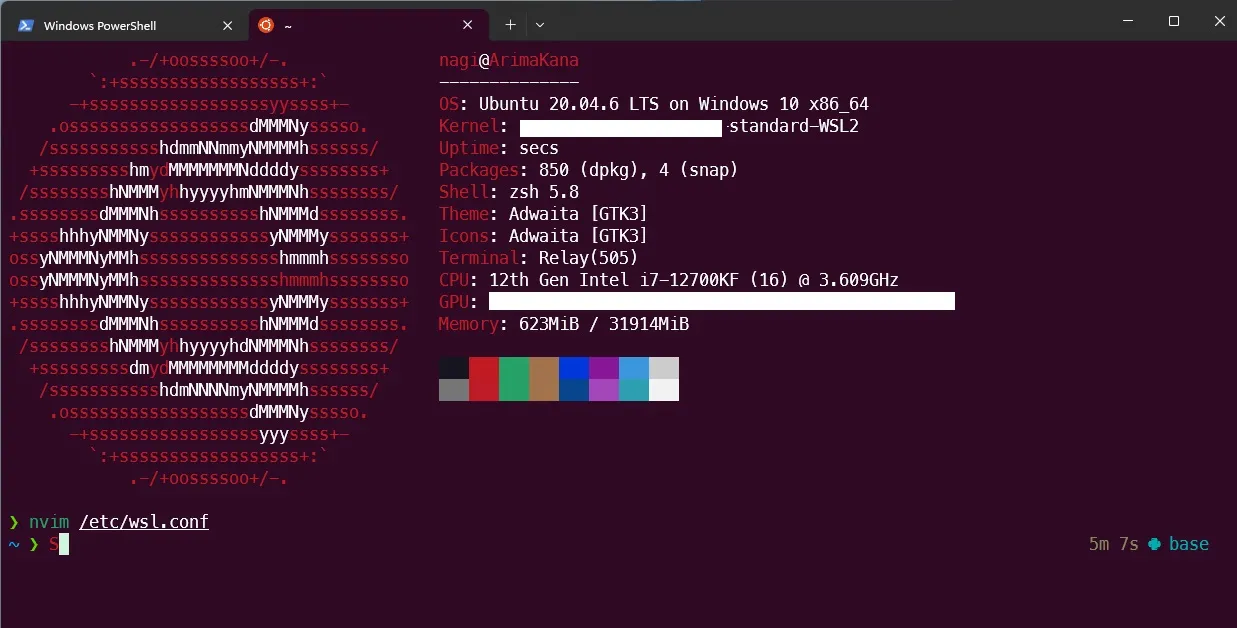
Documenting the complete process of configuring WSL2 and Ubuntu 20.04 on Windows 11, including disk migration, network configuration, and deep learning environment setup.
Configuring Ubuntu 20.04 on WSL2
I bought a new computer (3090 Ti) for “alchemy” (deep learning). After long deliberation between a dual-boot system and WSL, I chose the latter.
Reasons:
- I didn’t want to mess with dual-boot partitioning or network configurations; WSL can sync with the host’s network.
- To try out WSL2. I’ve known about it for a long time, but my previous Legion laptop ran it very slowly, so I never used it for productivity.
- Low profile. It’s a subsystem that opens in 2-3 seconds, allowing me to run background tasks while satisfying my weird requirement of “not wanting to configure environments in Windows.”
- Modern WSL2 reportedly has excellent support for NVIDIA GPUs, rendering many old warnings obsolete.
Configuration Journey
Recalling the steps:
Download WSL2
On Windows 11, simply run the following in Windows PowerShell to complete the setup. No need to manually toggle “Virtual Machine Platform” or “Hyper-V” in settings anymore:
wsl --install # Defaults to the LTS version. Use 'wsl --list --online' to see available versions.Moving the Disk
I prefer keeping files on a separate drive, but WSL installs on the system drive by default. First, identify the version:
wsl --list --verboseExport the existing system:
wsl --export Ubuntu-20.04 D:\Ubuntu.tar # Based on my version and namingUnregister:
wsl --unregister Ubuntu-20.04Import back to the new location:
wsl --import Ubuntu-20.04 D:\wsl2\Ubuntu D:\Ubuntu.tar.wslconfig
Press Win + R, type %UserProfile%, and create a file named .wslconfig (ensure file extensions are visible). For specific configurations, it’s best to consult professional resources. By default, WSL2 only uses half of the available memory; I wanted it all. The first two lines handle painless network host settings.
[wsl2]
networkingMode=mirrored
autoProxy=True
memory=32GBPotential Pitfalls
Note that after importing the disk, the default user will be root rather than your original Unix user. For your own sanity, avoid doing everything as root.
vim /etc/wsl.confPaste the following (systemd should be enabled by default now):
[user]
default=your_original_username
[boot]
systemd=trueAlso, never attempt a “delete everything” command (rm -rf /) in WSL; it might wipe the entire drive. Use a virtual machine if you want to experience the thrill.
Shutdown
To release resources when not in use, enter this in Windows PowerShell:
wsl --shutdownZSH
I’m used to ZSH as my default terminal. sudo apt install zsh does the trick. Follow a guide for oh-my-zsh to get a decent setup.
Reference: ZSH on Windows with WSL However, the font recommended there isn’t to my taste; I prefer JetBrains Nerd Font Mono.
Other Configurations
My goal was a deep learning environment. Nothing special here—just like on a native Linux server: miniconda + uv pip install.
If pip warns you about using the root account, refer to the “Pitfalls” section above.
Conclusion
WSL2 has definitely saved me a lot of energy, allowing me to tweak recipes and “train models” while slacking off. This kind of Windows is my ideal operating system. My MacBook Air has been sitting idle for days; I only touch it when leaving the house.
As for training speed, as long as it runs, it’s fine. The 20% performance loss reported online doesn’t bother me if I don’t think about it. Comparison is the thief of joy.